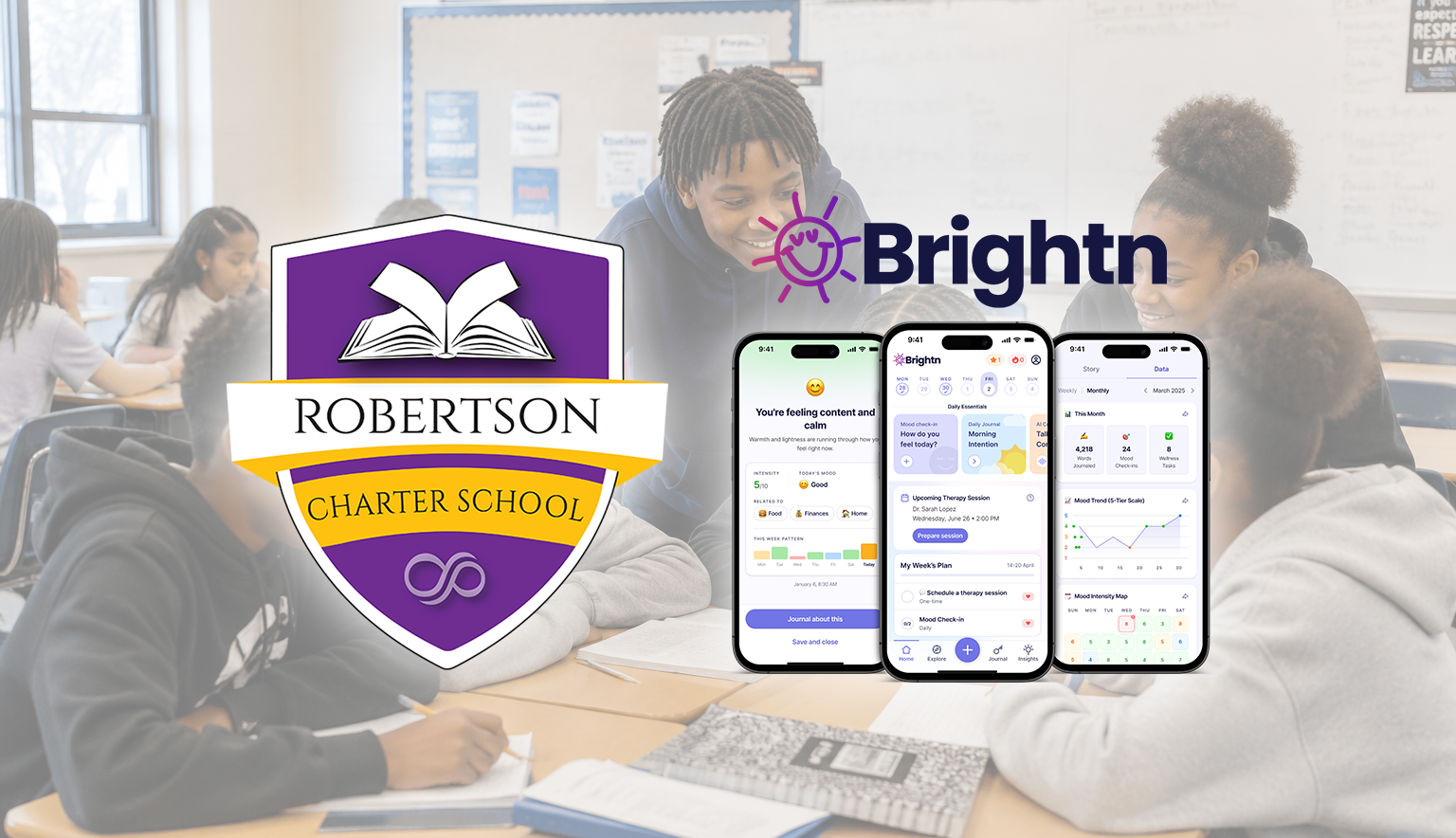
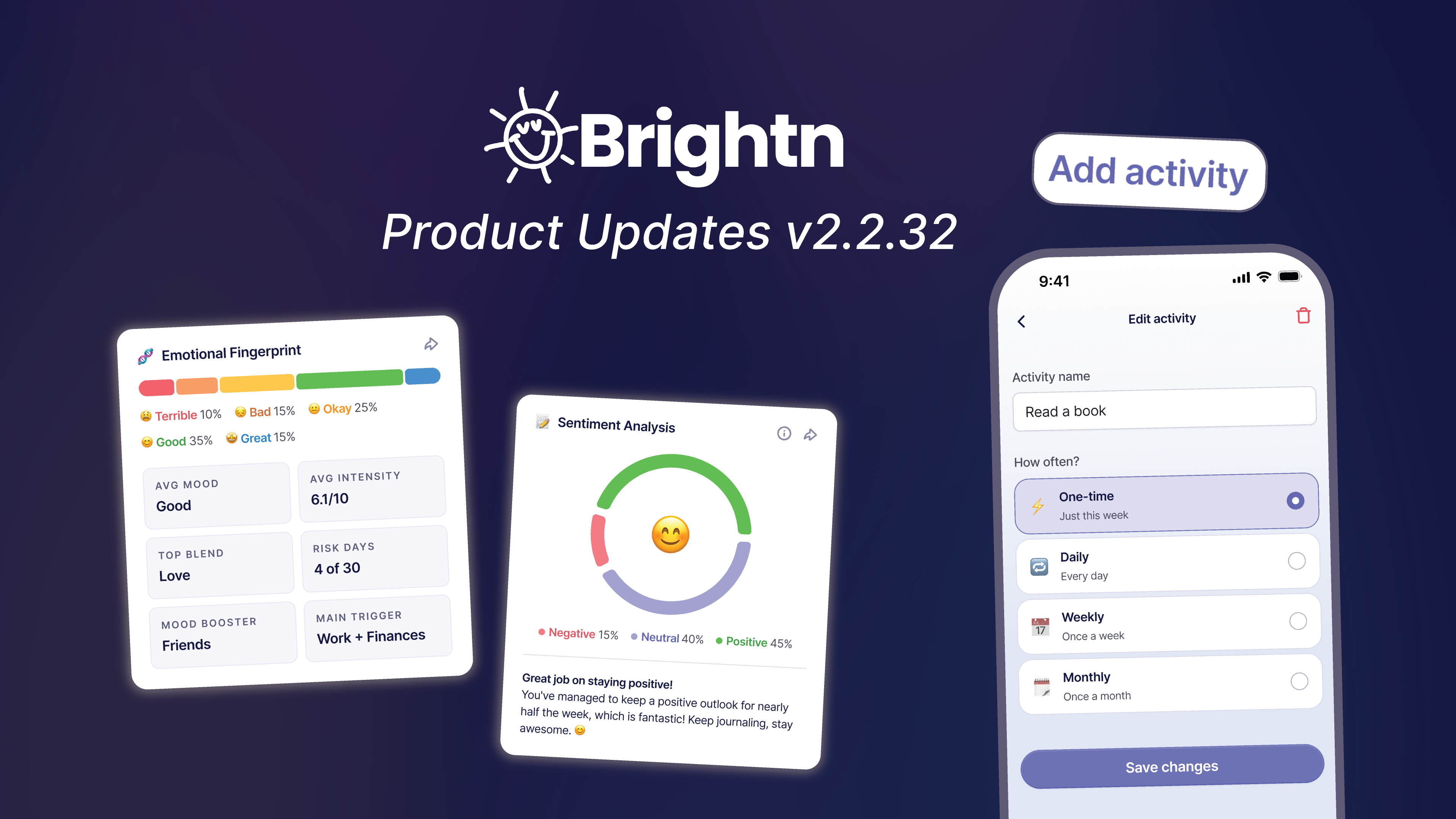
Brightn is a wellness app you can use to check in with how you are feeling, journal, set goals, and learn things that actually help with stress, school, money, and figuring out what you want. RCS is giving you access to it.
This guide walks you through the app one step at a time. Each section has a short video and written directions, so you can watch or just read. You do not have to learn all of it today. Pick one thing and start there.
Start with these three
Open Brightn on your school iPad and set up your account.
Do one mood check-in. It takes less than a minute.
Download Brightn on your phone at home so you have it when you need it.
You can use Brightn on your school iPad and on your own phone at home. It is the same account either way, so anything you write shows up on both.
On your school iPad
Brightn is already installed on your RCS iPad. Find the Brightn icon on your home screen and tap to open it. If you do not see it, let your teacher know.
On your phone at home
Tap the button below on your phone and it will take you to the right app store.
Then sign in with the same account you made on your iPad.
Tip: Set up your account once, on whichever device you are on first. After that, just sign in on the other one. Do not make two accounts or your check-ins will be split between them.
The first time you open Brightn, you will go through a short setup. It is not a test and there are no wrong answers. The more real your answers are, the more useful the app is going to be for you.
Watch: setting up your account and building your first wellness plan.
Tell Brightn a little about you
You will start with basic info like your name and birthday. Then Brightn asks about goals you want to work toward, things getting in your way, and what matters to you.
Do your Brightn Zone check
Next you will answer a quick set of questions about three parts of your life:
Health: how you are doing physically and mentally
Wealth: money, work, and feeling stable
Purpose: what makes your days feel like they mean something
Those three together are your Brightn Zone. Your answers help Brightn build you a personal plan with real things you can actually do. Pick the suggestions that make sense for you right now and add them to your plan as weekly or monthly goals.
Tip: Pick two or three goals to start, not ten. Doing a little bit consistently beats doing a lot once.
Enter your RCS access code
When Brightn asks about your membership, choose the option to enter an organization code and put in the code RCS gave you. That unlocks your full access. You will not be asked to pay for anything.
This is the main loop of Brightn: check in, write something, then look back and notice what has been going on. The longer you use it, the more it has to show you.
Watch: mood check-ins, journaling, reflections, and your weekly insights.
Do a mood check-in
A check-in is the fastest way to name how you are feeling. It takes under a minute.
Tap Journal, then Check In.
Pick up to three emotions.
Rate how strong each one feels.
Pick up to three things that might be causing it.
Save it, or keep going into a journal entry if you want to get into it more.
Tip: Checking in on a normal, boring day counts just as much as checking in on a rough one. That is how you start seeing patterns.
Journal and get a reflection back
Your Journal holds everything you have written and every check-in you have done. It is also where you start a new one.
If you journal right after a check-in, Brightn gives you questions to help you get started so you are not staring at a blank screen. When you save your entry, you get a personal reflection back. Brightn might also suggest an activity related to what you wrote that you can add to your plan.
You can go back and read old entries anytime.
See your insights
Tap Insights to see patterns from your check-ins and journal entries.
Your weekly and monthly reports pull everything together so you can see what has been changing. The more often you check in, the more there is to look at.
Track the pattern, not the perfection. Missing a day does not undo anything.
Explore is Brightn's library of programs and lessons across Health, Wealth, and Purpose. Go here when you want to work on something specific.
Watch: browsing programs, filtering by Brightn Zone, and adding to your plan.
Tap Explore at the bottom of the app. From there you can:
Browse all the programs
Filter by Health, Wealth, or Purpose
Search a specific topic
Watch individual lessons
Add new activities to your weekly plan
For example, search stress and you will get programs and lessons built around it. Finishing lessons also earns you points in the app.
You can also go back to your Brightn Zone from here and grab new suggestions whenever your plan starts feeling too easy or stops fitting what you need.
Settings is where you make the app work the way you want it to, from how your Brightn AI talks to you to how often it reminds you to check in.
Watch: personalizing your profile, notifications, and app preferences.
Open your profile
From the home screen, tap your profile icon in the top right corner. You will see a quick view of your activity, like your recent check-ins and what you have finished.
From here you can also open your Brightn Zone, browse programs, and add things to your weekly plan.
Open your settings
From your profile, tap the Settings icon in the top right corner. Everything below is in that menu.
Customize your Brightn AI
You can rename your Brightn AI and change personality settings that affect how its responses feel. If the tone is not working for you, change it.
Update your info
You can edit things like your name, email, birthday, About Me, and what you are into. You can also go back and change the goals and challenges you picked during setup. Things change, so it is worth updating these once in a while.
Manage notifications
Turn reminders on or off and set when you want them. Pick times you would actually stop and check in. A reminder you swipe away every day is not helping you.
Face ID and security
If your device supports it, you can turn Face ID on or off for signing in. Worth turning on if you want your journal locked behind your face.
Get help
Tap Get Help in the settings menu to contact Brightn support with any question about your account. Widget setup instructions are in here too.
Fair question, and you should ask it. Here is the short version.
Your journal entries are yours. Teachers and staff at RCS do not read what you write.
The school sees the big picture, not you specifically. RCS can see general information about how students are using the app overall, not individual entries.
There is one exception. If something you write suggests you may be in danger, Brightn is set up to notify school staff so someone can check on you. That is the one time your name comes up.
You are not in trouble for being honest in your journal. The whole point of the app is having somewhere to put it.
Come back to these videos whenever you want a refresher. If something is not working or you have a question about your account, tap Get Help inside the app.
You do not need to have everything figured out. Start with one honest check-in.
Brightn is for everyday support. It is not a replacement for talking to a person when things feel like too much.
If you are struggling, tell a trusted adult, a teacher, or a counselor at RCS. You can also call or text 988 anytime to reach the Suicide and Crisis Lifeline, or text HOME to 741741 for the Crisis Text Line. Both are free and available 24 hours a day.